
.png?width=1440&height=622&name=Accounting%20Service%20Menu%20Image%20(1).png)
.png?width=1440&height=622&name=Tech%20Service%20Menu%20Image%20(1).png)
.png?width=1440&height=622&name=Financial%20Serivce%20Menu%20Image%20(1).png)
.png?width=1440&height=622&name=M%26A%20Service%20Menu%20Image%20(1).png)
.png?width=1440&height=622&name=Talent%20Service%20Menu%20Image%20(1).png)
%20(1).jpg?width=264&height=160&name=Website%20Featured%20Content%20Images%20(2)%20(1).jpg)
%20(1).jpg?width=264&height=160&name=Website%20Featured%20Content%20Images%20(4)%20(1).jpg)
-Mar-08-2024-08-50-35-9527-PM.png?width=300&height=175&name=Untitled%20design%20(1)-Mar-08-2024-08-50-35-9527-PM.png)

%20(1)-1.jpg?width=264&height=160&name=Website%20Featured%20Content%20Images%20(2)%20(1)-1.jpg)
-1.jpg?width=264&height=160&name=Website%20Featured%20Content%20Images%20(1)-1.jpg)
%20(1).jpg?width=264&height=160&name=Website%20Featured%20Content%20Images%20(3)%20(1).jpg)


.jpg)

.webp)
Does everyone on your team have their own version of a to-do list? Microsoft Planner, part of the Microsoft 365 ecosystem, replaces that mental juggling act with a centralized, visual workspace where teams can organize projects, assign responsibilities, track progress, and stay aligned without leaving the tools they already use every day.
What is Microsoft Planner?
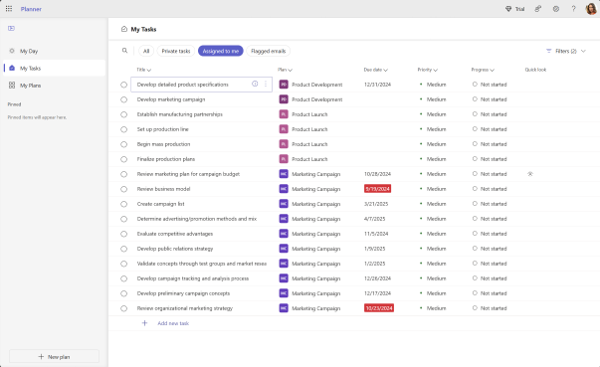
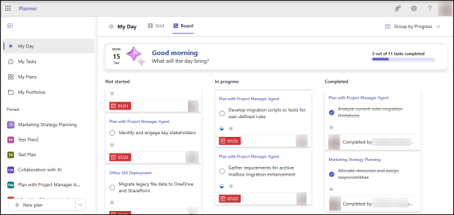
Microsoft Planner is a task and work management solution within Microsoft 365 that helps teams plan, manage, and complete projects more efficiently. Tasks are organized visually using Grid, Board, Schedule, and Charts views that make it easy to understand workloads and track progress. Organizations with Planner Premium also gain advanced capabilities such as Timeline view, and personal areas like My Day and My Tasks help individuals keep track of their own work across plans.
For organizations already using Microsoft 365, leveraging tools such as Planner, Teams, SharePoint, Outlook, and Copilot can create a more connected and efficient work environment while enhancing collaboration, communication, and overall productivity.
Key Microsoft Planner Features
1. Visual Task Boards
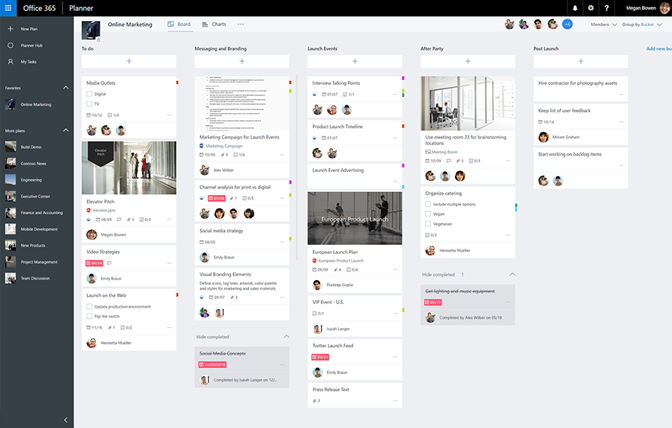
Planner uses a visual task board structure that allows teams to organize tasks into customizable buckets. These buckets can represent project phases, departments, priorities, or any workflow that fits your organization. The visual layout makes it easy to identify what's completed, what's in progress, and what still needs attention.
2. Task Assignments & Ownership
Every task can be assigned to specific individuals with:
- Due dates
- Priority levels
- Notes and descriptions
- File attachments
- Task checklists
Clear ownership reduces confusion and ensures accountability across projects.
3. Multiple Planning Views
Different team members prefer different ways of working. Planner offers several plan views, along with personal work areas, to support various work styles, including:
|
View |
Best Use |
|
Board View |
Visual task management |
|
Grid View |
Detailed task tracking |
|
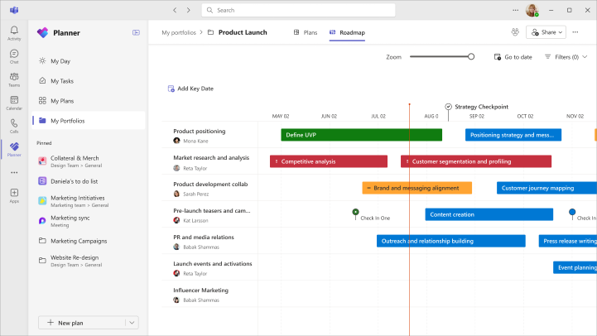
Timeline View (Premium) |
Project scheduling |
|
My Day |
Personal task prioritization |
|
My Tasks |
Individual workload management |
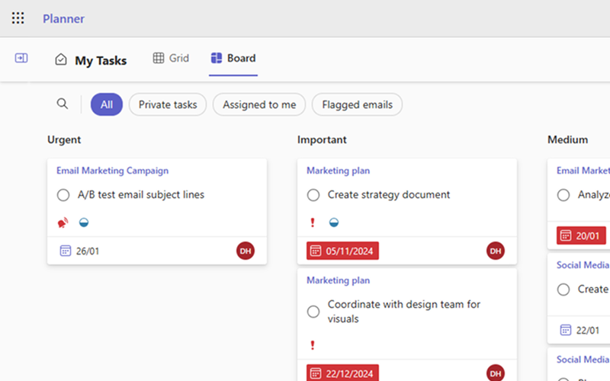
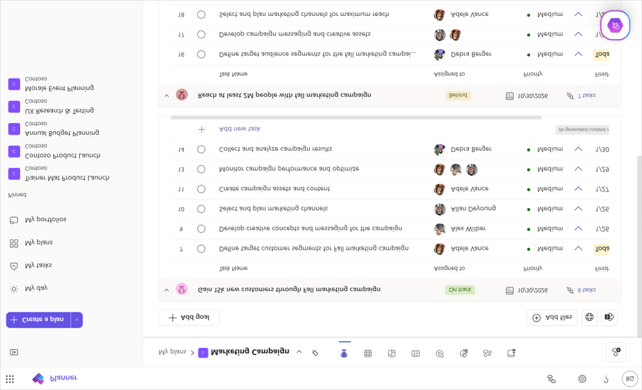
These flexible views let users manage work in whatever format makes the most sense for them. Need a snapshot of the work happening within a plan? Pull up the Board or Grid view. Just want to focus on the tasks that matter today? My Day has you covered.
Board View
Grid View
Timeline View (Premium)
My Tasks
My Day
4. Connected Team Collaboration
Because Planner connects with Microsoft 365, team members can collaborate in the tools they already use, whether they work in Teams or the Planner app, with related files and content in SharePoint, Outlook, and other Microsoft 365 services. Users can:
- Share project plans
- Update task progress
- Add comments
- Attach supporting documents
- View project status in real time
This reduces the need for manual status updates that often slow projects down.
Integrating Planner With Microsoft Teams
One of Planner's biggest advantages is its seamless integration with Microsoft Teams. Teams already serves as the communication hub for many organizations, and Planner extends that functionality by allowing conversations to become actionable tasks.
Say a colleague flags something in a Teams chat that needs follow-up. Instead of losing it in the scroll, you can:
- Hover over the message, select the ellipsis (...), and choose More actions
- Select Create Planner task
- Assign it to a Planner bucket, set a due date, and add an owner
The task now lives in Planner, still linked back to the original conversation, so nothing gets lost between chat and execution.
How can my organization use Planner?
Here's what use can look like in practice across a few common departments:
Marketing Teams
For a product launch, marketing could set up buckets for Planning, Content Creation, Approval, and Launch. Then they can move each deliverable (blog posts, social assets, email drafts) across the board as it moves through review.
Operations Teams
For a recurring process like monthly financial close, operations could build a plan with a bucket for each step, then assign owners and due dates so the same checklist runs cleanly every month without anyone reconstructing it from memory.
Human Resources
For onboarding a new hire, HR could create a plan with tasks like Send Offer Letter, Set Up Equipment, Schedule Orientation, and Assign Training Modules, each assigned to the right person so nothing falls through the cracks in the first week.
Leadership Teams
For a strategic initiative like a company-wide goal rollout, leadership could use Planner to track each department's contribution as its own task, giving them a single board to see progress across the organization instead of chasing updates in separate emails.
Best Practices for Getting Started
To maximize adoption and effectiveness:
Create Consistent Buckets
Establish a standard structure so projects are easy to understand across departments.
Define Clear Ownership
Every task should have an assigned owner, even if multiple team members contribute.
Use Due Dates Strategically
Deadlines create visibility and help prioritize workloads.
Keep Plans Current
Encourage teams to update task status regularly to maintain accurate reporting.
Lutz Can Help You Work Smarter With Microsoft Planner
By bringing task management into the applications your employees already use, Planner reduces friction while helping employees focus on what matters most. Microsoft Planner’s greatest value comes when it's implemented as part of a broader Microsoft 365 strategy.
If your team is looking to get more value from Microsoft 365, Lutz Tech can help. Our Outsourced IT team works with organizations to optimize their Microsoft 365 environment, streamline workflows, and implement practical solutions that help employees work smarter. Contact us to start the conversation.

- Positivity, Relator, Includer, Discipline, Maximizer
German Agraz
German Agraz, Account Coordinator, began his career in 2023. With a background in both accounting and technology sales, he brings a well-rounded perspective and a proactive, client-first mindset to his role at Lutz.
Specializing in client coordination and communication, German serves as the primary point of contact for Lutz Tech customers. He manages licensing, software renewals, and service agreements, while collaborating with technical teams to ensure timely delivery of support, projects, and managed services. Known for his friendly, upbeat style, German builds genuine connections with each client—creating an experience that feels both personal and dependable. He takes pride in making sure every solution is thoughtful, well-executed, and aligned with each client’s goals. Whether he’s troubleshooting an issue or guiding a long-term project, his focus is always on delivering consistent value and care.
German lives in Omaha, NE. Outside the office, you can find him teaching yoga classes (with a carefully curated playlist), traveling to concerts, and visiting family in Mexico.
Recent News & Insights

Microsoft 365 Series: Get More Done with Microsoft Planner

2027 Tax & Workforce Compliance Changes for Nebraska & Iowa Businesses

Know Your Numbers: The Financial Reports Every Business Owner Should Understand

Lutz adds Kemp & Tichota as Senior Accountants